
Getting Started with HubSpot: What to Do First (and What to Skip)

 Rui Nunes

I’ve spent over 30 years working with CRM and email marketing platforms, and I’ve tested dozens of them. Some are really hard to learn. Others are just too simple and lack a lot of functionality.
HubSpot is in that rare sweetspot where you can get going quickly, with a powerful platform.. That is, as long as you do it correctly.
Getting started with HubSpot is straightforward. The free plan gives you real tools to work with, and the platform scales as your business grows. But your first few decisions inside HubSpot matter more than most people realise. So, keep reading.
This guide covers what you need to do in your first week, what to prioritise, and what mistakes to avoid. Whether you’re a solo founder or part of a growing team, these steps will help you get value from HubSpot fast.
I’ve also included real case studies and resources that show how other businesses got results. No hype, just practical advice from someone who’s set up HubSpot for clients across multiple industries.
Why HubSpot?
HubSpot has a reputation as a quality platform for good reason. Here’s what makes it stand out from the dozens of CRM and marketing automation platforms I’ve worked with:
- Free tools with real functionality. HubSpot offers a free edition with 1,000 contacts and 2 users. You get contacts, companies, deals, tasks, email inbox connection, forms, tickets, and basic reporting. You can also send 2,000 marketing emails per month. That’s enough to run meaningful campaigns without paying anything.
- A modular, all-in-one platform. HubSpot is built around separate Hubs (Marketing, Sales, Service, Content, Data, and Commerce), all connected through the CRM. You can start with one Hub and add others as your needs grow. Every customer interaction lives in a single database, so there’s no more stitching data together from three different tools. For a full breakdown of what each Hub and tier includes, see our HubSpot pricing guide.
- 2,000+ integrations. The HubSpot App Marketplace connects with tools you’re likely already using, such as Slack, Google Workspace, Salesforce, Shopify, Zoom, and thousands more. If you’re switching from another CRM, chances are there’s a native integration available.
- Genuinely easy to get started. The interface is clean. Navigation is logical. Most features work the way you’d expect. Compared to Salesforce or even some mid-range tools, HubSpot has a gentler learning curve for beginners.
- Reporting included from day one. Even the free plan includes reporting dashboards so you can track performance immediately. Dashboard limits vary by plan.
How HubSpot Helps Businesses Grow
Theory is one thing. Results are another. Here are verified HubSpot case studies from companies that put HubSpot to work:
- Motorola Solutions unified 123,000+ customer records using Data Hub and Marketing Hub. One campaign uncovered an 80% adoption gap across their product base, generating millions in revenue.
- DoorDash cut 3 days off their email campaign production process and went from 0% to 80% automated marketing emails. Their team previously spent 5-10 hours a month manually cleaning form data before HubSpot handled it automatically.
- Rakuten Advertising, a HubSpot customer since 2012, achieved 100% adoption across all marketing functions. Their Senior Manager of Marketing Operations freed 50% of the time he previously spent building manual reports.
- Teamwork.com saw their sales team become 50% more effective after implementing Sales Hub, with an 11% higher win rate and an 18% increase in average selling price. Quote-approval workflows nearly paid for the entire HubSpot subscription in the first quarter.
- Tumblr used Marketing Hub and Data Hub to increase user engagement, achieving a 50% increase in first-week return rate for users tracked through HubSpot campaigns.
- VELUX, the Danish skylight manufacturer, used HubSpot’s Breeze AI to create personalised product visualisations in 5 minutes. The same process previously took 2-3 weeks.
- Colnago, the Italian bicycle manufacturer, integrated blockchain records, ecommerce data, and management systems through HubSpot’s CRM to create digital “identity cards” tracking each bicycle’s ownership, spare parts, and race participation history.
- Arduino migrated approximately 8,500 contacts and 4,000+ completed deals into HubSpot with full historical data. Within months, the team entered roughly 200 new deals, all properly linked and configured for their unique market segments spanning industrial, educational, and DIY customers.
If you want to estimate what HubSpot could do for your specific business, try the HubSpot ROI Calculator. You input your industry, traffic, and sales data, and it projects potential improvements based on aggregated data from HubSpot’s customer base. You’re welcome.
Get started with HubSpot for free
Getting Started with HubSpot
Signing up to HubSpot takes about 5 minutes with your email or Google/Microsoft login. No credit card required for the free CRM.
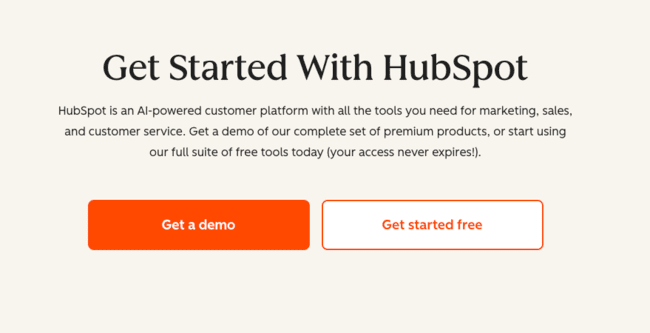
During onboarding, HubSpot asks about your company size, goals, and role. Pay attention here. Your answers shape which features HubSpot highlights first. It also prompts you to connect your email (Gmail, Outlook, or Exchange) and calendar early on. Do this immediately. Email tracking and meeting links are among HubSpot’s most useful day-one features.

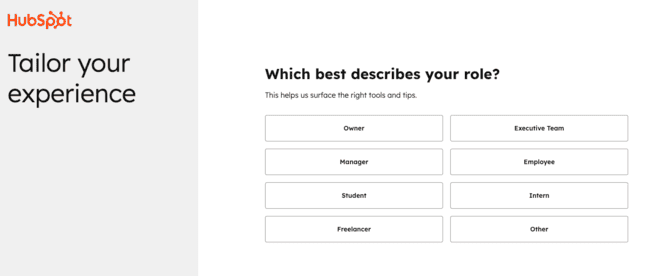
If it detects that you’re from a European country, as it did for me, you’re automatically hosted in one of their European data centres to comply with GDPR.


For paid plans, HubSpot provides guided onboarding with dedicated support. Professional and Enterprise plans include onboarding sessions, and full implementation typically takes 45-75 days. But for free and Starter plans, the step-by-step guide they have is pretty easy and straightforward. This guide will save you time in case things get messy along the way.
Get started with HubSpot for free
1. Set Up Your Sender
Before you send a single marketing email, connect your inbox and configure your sender details. Go to Settings → General → Email and connect your Gmail, Outlook, or Exchange account. This lets you log and track emails directly from HubSpot.


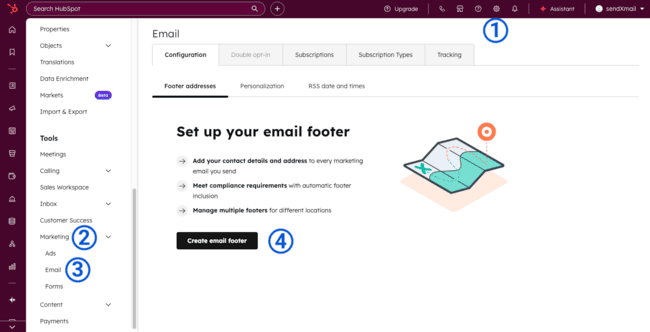
Next, set your default marketing email footer. HubSpot requires a company name and physical mailing address in every marketing email. This is a legal requirement under CAN-SPAM, GDPR, and similar regulations.
Navigate to Settings → Marketing → Email → Configuration → Footer to fill these in. HubSpot adds an unsubscribe link and subscription preferences to the footer by default, so you’re compliant out of the box.

Beyond the basic footer setup, configure your sending domain by adding SPF, DKIM, and DMARC records to your DNS. This authenticates your emails and improves deliverability. HubSpot walks you through the DNS setup step by step under Settings → Content → Domains & URLs → Domains → Connect an email sending domain. But this feature is only available for paid plans.
![Connect an email sending domain on Hubspot]](png/connect-an-email-sending-domain-on-hubspot.png)
![Connect an email sending domain on Hubspot]](https://www.emailvendorselection.com/wp-content/uploads/Connect-an-email-sending-domain-on-Hubspot.png)
2. Import Your Contacts
Navigate to Data Management → Data Integration → Import data. HubSpot accepts CSV, XLSX, and XLS files. Each file must have a single sheet with a header row, and each column header should correspond to a HubSpot property.


Free-tool import limits apply. Files must be under 20 MB, you can complete 50 imports per day, and import up to 500,000 rows per day. Paid plans raise these limits significantly (512 MB files, 500 imports/day, 10 million rows/day).
Clean your data with email verification tools before importing. Remove duplicates, delete rows with blank email fields, and use UTF-8 encoding for special characters. Leave cells blank rather than filling them with “N/A” or placeholder text. HubSpot’s field mapping will auto-match column headers to properties, but you should review each match manually.
Remember, the free plan caps you at 1,000 contacts total. If you’re already above that, you’ll need a paid plan.
Get started with HubSpot for free
3. Create Your Email Templates
Go to Marketing → Create Email → Regular → From scratch. Give it a name, write your subject line, and build your template. Unfortunately, this is only available for paid accounts.


Use personalisation tokens to pull in contact, company, or deal data automatically. Always set a fallback value for blank fields. Nothing kills trust faster than an email that reads “Hi {first_name}.”

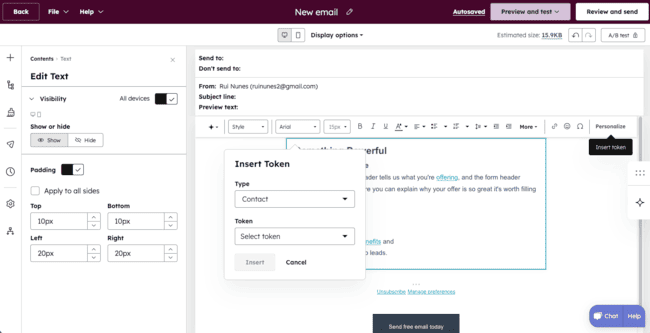
Every marketing email must include an unsubscribe link, your physical address, and subscription preference options. HubSpot includes these in the footer by default, so don’t remove or hide them. Beyond legal compliance, making it easy to unsubscribe actually improves your sender reputation over time.
Create templates for your most common touchpoints: introduction, follow-up, meeting confirmation, proposal sent, and check-in. You can always refine later.
4. Set Up Dashboards for Reporting
Navigate to Reporting → Dashboards → Create dashboard. You can start from a pre-made template or build from scratch. Name it clearly (avoid generic names like “Dashboard 1”) and set access permissions. Keep in mind that private dashboards are visible only to you, while shared dashboards can be seen by your team or everyone in the account.

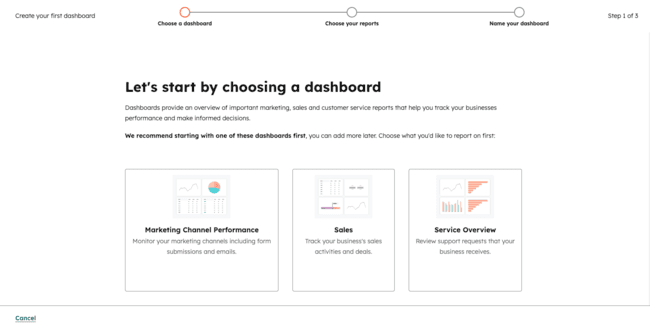
Dashboard limits are plan-based. Check the HubSpot pricing for current limits on your specific plan. Start with three dashboards: one for marketing metrics (email opens, clicks, form submissions), one for sales pipeline (deals by stage, close rate, revenue), and one for overall activity (contacts created, tasks completed).
Add your dashboards as browser bookmarks. If you need to open HubSpot to check a dashboard, you’ll check it. If you need to navigate through three menus to find it, you won’t.
Get started with HubSpot for free
5. Install HubSpot Tracking Code
The tracking code connects your website activity to your HubSpot CRM. Once installed, HubSpot tracks page views, form submissions, and traffic sources for every visitor. When a visitor converts into a contact, all of that browsing history gets attached to their record, giving you attribution data that shows which pages and campaigns actually drive results.
Navigate to Settings → Tracking & Analytics → Tracking code, copy the embed code, and paste it before the closing </body> tag on your site.

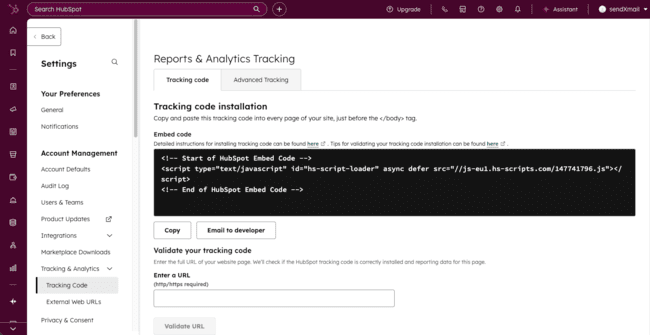
WordPress users: Install the HubSpot All-in-One Marketing plugin. It handles the tracking code automatically.
Shopify users: Add the code through Online Store → Themes → Edit code → theme.liquid.
Wix users: Go to Settings → Custom Code → Add Custom Code, select “All pages” and “Body – end.”
After installation, verify it works by entering your URL in HubSpot’s “Validate your tracking code” section. HubSpot tests the page and emails you the results.
6. Add Users and Set Permissions
Go to Settings → Users & Teams → Create user. Add team members by email address or CSV file (up to 100 at once). You can also import users from Salesforce, Pipedrive, or other CRMs.


Resist the urge to give everyone Super Admin access. Assign role-based permissions instead. HubSpot lets you control who can access specific Hubs, tools, reports, and dashboards.
Your marketing team doesn’t need to edit deal pipelines. Your sales team doesn’t need access to website settings.
Start strict, loosen later if needed. It’s far easier than cleaning up after someone accidentally deletes a workflow.
Note that HubSpot uses a seat-based model. Free plans have two users, while editing access on paid plans requires paid Core Seats.
Get started with HubSpot for free
HubSpot Resources for Getting Started
One of HubSpot’s genuine strengths is the depth of its learning resources. Most CRM platforms offer a knowledge base and leave it at that. HubSpot goes further. Between the Academy, Glossary, and Community, you have everything you need to go from beginner to competent without paying for outside training.
HubSpot Academy
HubSpot Academy offers hundreds of free courses and certifications covering marketing, sales, service, CRM administration, and AI automation. Courses range from 20-minute lessons to multi-hour certification programmes with exams.
Start with the HubSpot Marketing Hub Software. It’s foundational, free, and teaches you HubSpot’s core methodology. From there, move to Email Marketing, HubSpot Reporting, and CRM based on your role. Certifications look good on LinkedIn and are recognised across the industry.
Content is available in multiple languages, including English, Spanish, German, Japanese, French, and Portuguese. The courses include practical exercises, so you can apply what you learn inside your own HubSpot account as you go.
HubSpot Glossary
The HubSpot Glossary defines essential platform terminology you’ll encounter immediately. Three terms matter most for beginners:
- Marketing Contacts vs Non-Marketing Contacts. On paid plans, marketing contacts are the ones you send promotional emails to. They count towards your subscription tier and directly affect your billing. Non-marketing contacts are stored in your CRM for sales, service, or reference purposes without billing impact. Understanding this distinction prevents billing surprises and helps you choose the right plan. On the free plan, you simply have 1,000 total contacts. Our HubSpot pricing guide breaks down how contact definitions affect each pricing tier.
- Hubs. HubSpot’s platform is divided into Hubs: Marketing, Sales, Service, Content, Data, and Commerce. Each Hub has its own feature set and pricing tier. You don’t need all of them. Pick the Hub that matches your primary use case, and add others as your needs grow.
- Lifecycle Stages. These track where a contact sits in your funnel: Subscriber → Lead → Marketing Qualified Lead → Sales Qualified Lead → Opportunity → Customer → Evangelist. Define what each stage means for your business before you import contacts. Align your sales and marketing teams on these definitions. Misaligned lifecycle stages are one of the fastest ways to create CRM chaos.
HubSpot Community
The HubSpot Community is an active peer-to-peer support forum. You’ll find discussion boards covering every Hub, an Ideas Forum monitored by HubSpot’s product team (where you can vote on feature requests), and user-contributed tips and guides.
For beginners, the Community is often more useful than official documentation because real users describe real problems and real solutions. When you hit a wall, search the Community before submitting a support ticket. Chances are someone has already solved your exact issue.
Let’s Get Started with HubSpot
Getting started with HubSpot comes down to three priorities. First, get your data right from day one. Clean your contacts before importing, define your lifecycle stages, and set naming conventions for lists, properties, and workflows. Every HubSpot partner and expert I’ve spoken with names dirty data as the number-one mistake beginners make. Believe me, it’s a struggle, and most of the companies have messy data.
Second, start simple. Don’t try to build complex automation workflows in week one. Set up your pipeline, send your first emails, track your first deals. Learn how the platform works before you automate it. Complex workflows built on a shaky foundation create more problems than they solve.
Third, invest in learning. HubSpot Academy certifications are free and genuinely useful. The Community fills gaps that documentation misses. Take a phased approach: master the basics first, then expand into advanced features as your confidence grows. You have no idea how many people complain that they don’t see any results because they’re doing it on their own without investing in learning the basics.
Get started with HubSpot for free
If you’re evaluating whether HubSpot is the right fit, read our full HubSpot review or explore HubSpot alternatives to compare it with other platforms.